IPTV 4K Guide 2026: Internet Speed, UHD Quality and Best Settings
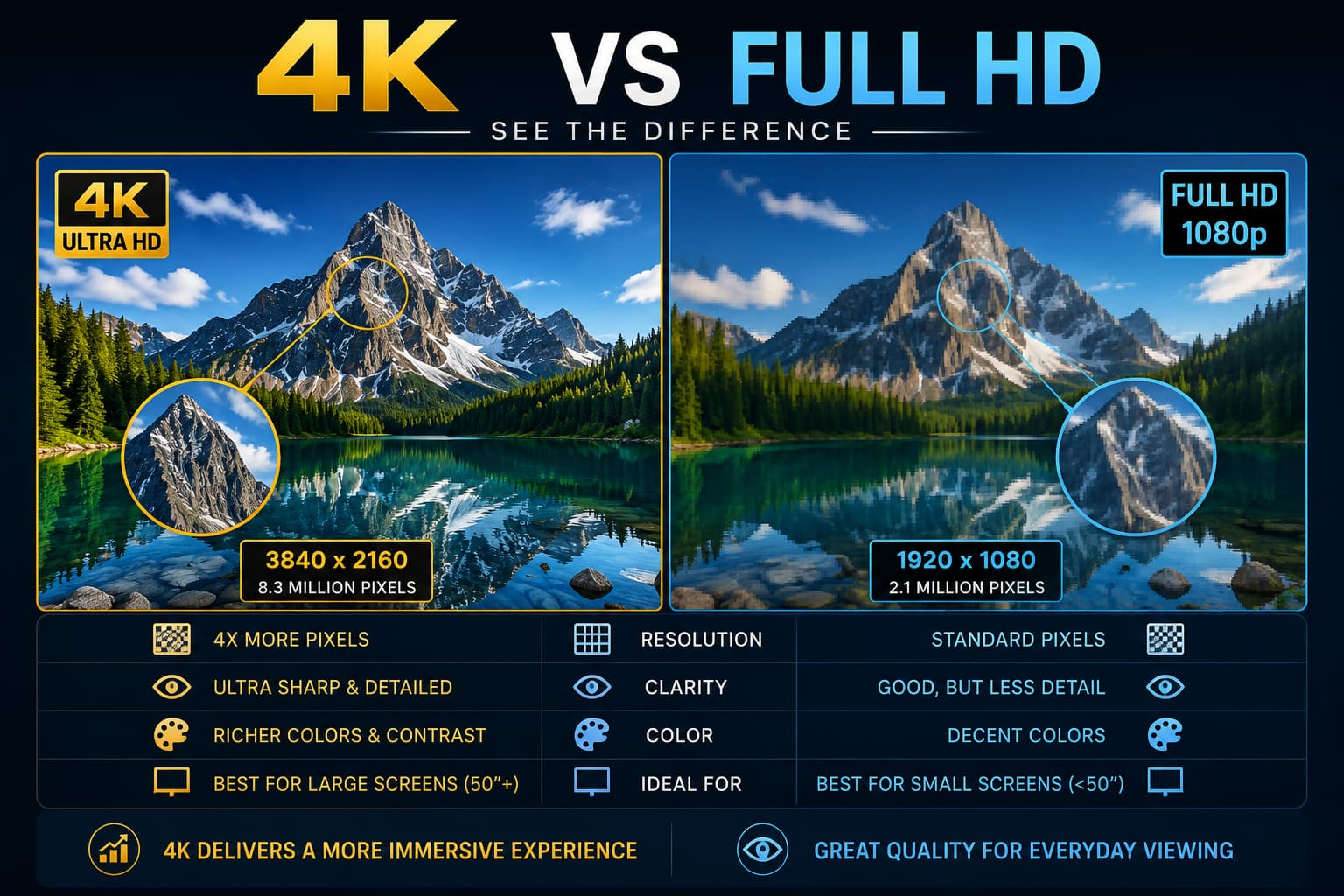
You can own a 4K TV and still watch a soft IPTV picture. The screen only shows what survives the delivery path. Source quality, bitrate, codec, server stability, internet speed and device decoding shape the final image. A 4K badge cannot rescue a weak link. A reliable IPTV 4K setup works as a connected system….
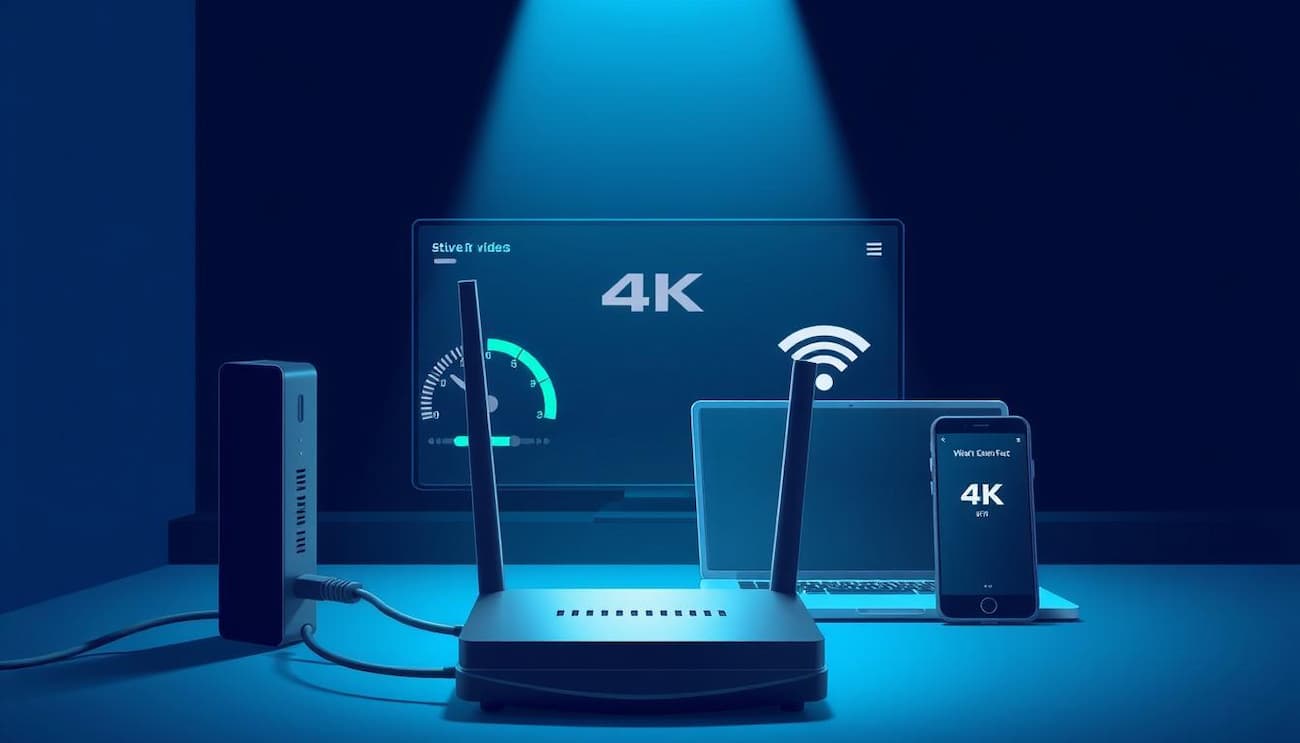
You can own a 4K TV and still watch a soft IPTV picture. The screen only shows what survives the delivery path. Source quality, bitrate, codec, server stability, internet speed and device decoding shape the final image. A 4K badge cannot rescue a weak link. A reliable IPTV 4K setup works as a connected system. Your provider supplies the feed, your network carries it, your device decodes it, and your television displays it. Once you understand those relationships, you can improve UHD quality without guessing.
What Does IPTV 4K Really Mean?
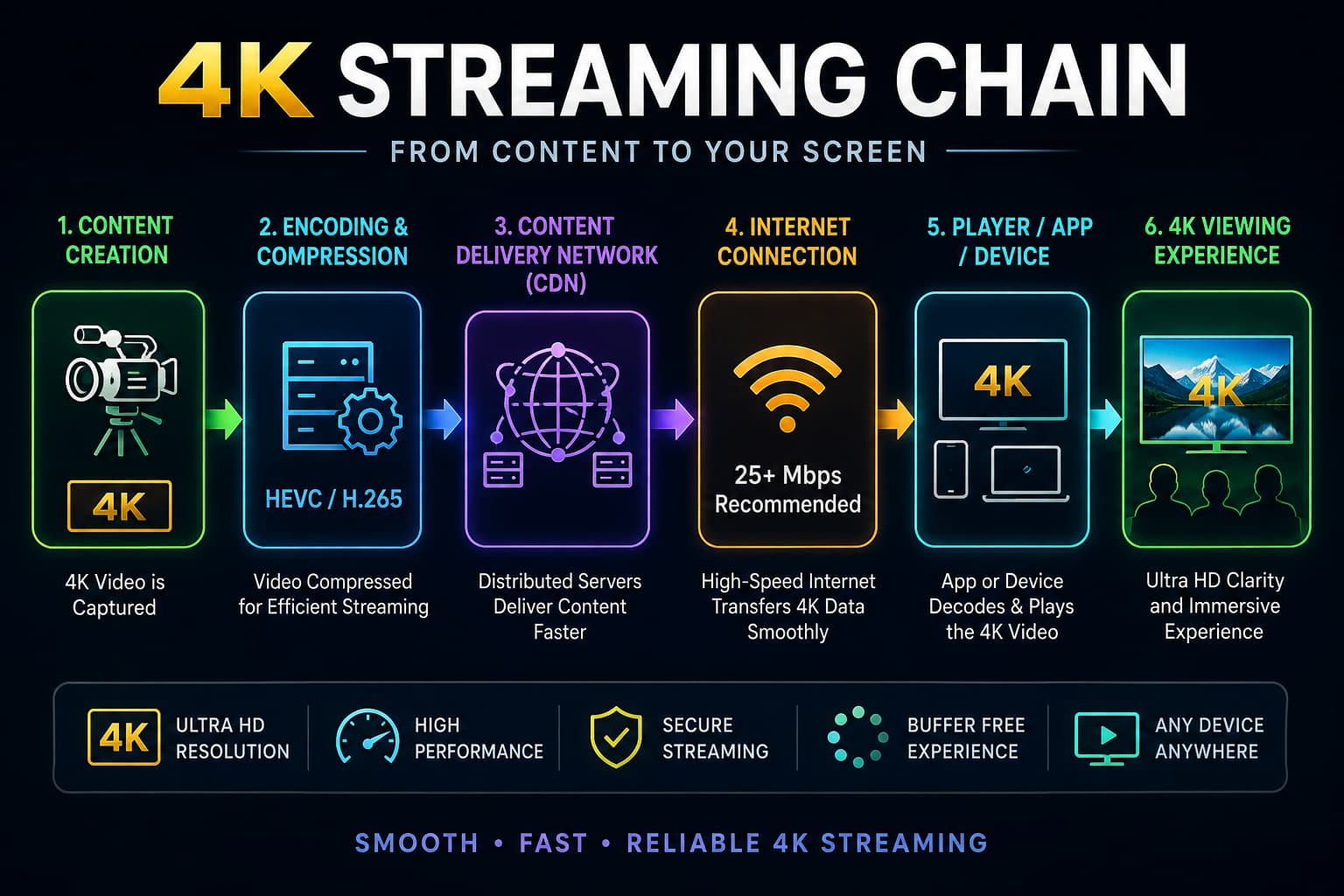
For consumer television, 4K UHD normally means 3840 × 2160 pixels. Full HD uses 1920 × 1080, so UHD carries four times as many pixels in a complete frame. More pixels can reveal finer detail, but only when the original feed contains enough detail. An upscaled 1080p source can still look softer than a clean native 4K stream.
IPTV 4K vs Full HD: What You Actually See
You usually notice 4K most on larger screens, stadium crowds, faces and fine text. Fast sport exposes compression problems because grass, players and camera movement change constantly. Full HD can look better when a 4K feed is heavily compressed. Resolution matters, but bitrate, frame rate and source quality shape the picture.
| Area | What it controls | Common 4K problem |
|---|---|---|
| Source feed | Original picture detail | Upscaled or soft source |
| IPTV server | Delivery stability | Peak-hour congestion |
| Internet | Available bandwidth | Speed drops |
| Router | Local connection | Weak Wi-Fi |
| Device | HEVC/4K decoding | Stutter or black screen |
| Player | Buffer and playback | Compatibility issues |
| TV | Final image | Wrong output or picture settings |
How Much Internet Speed Do You Need for IPTV 4K?
You do not need gigabit fibre for one UHD stream. Netflix recommends 15 Mbps or higher for its own 4K playback, while 25 Mbps gives you more practical headroom for live viewing and household traffic. Stable delivery matters more than a large headline number. Test speed beside the television because Wi-Fi can fall sharply after walls and distance.
A 500 Mbps fibre plan can therefore perform badly at the TV while a stable 40 Mbps connection works well. Your router speed and device speed are not the same metric. Phones, game consoles, laptops and other televisions also share the available bandwidth. You should judge the connection where the IPTV player actually runs.
Why Bitrate Matters More Than a 4K Label
Resolution describes pixel dimensions, while bitrate describes how much video data is available over time. Two channels can both output 3840 × 2160 and still look completely different. Heavy compression can remove texture, soften faces and create blocks during motion. A high-resolution label does not guarantee a high-quality source. A real-world clue appears during football. A studio shot may look sharp while the pitch turns muddy during a fast camera pan. Your TV has not suddenly lost resolution. The stream may lack enough clean data for complex movement.
Why HEVC H.265 Is Important for 4K IPTV
HEVC, also known as High Efficiency Video Coding or H.265, is widely used for UHD video because it compresses high-resolution content efficiently. Your streaming device must support the codec sent by the provider, or playback can fail even with fast broadband. Codec compatibility therefore connects provider encoding directly with device hardware.
Amazon documents HEVC playback up to 3840 × 2160 at 60 fps on supported Fire TV 4K hardware. Nvidia Shield TV Pro also supports H.265/HEVC up to 4K HDR at 60 fps. A capable decoder matters as much as the television panel.
4K, HDR and 60 FPS Mean Different Things
You may see 4K, HDR, HDR10, Dolby Vision and 60 fps mentioned together, but each term describes a different part of video quality. Resolution controls pixel dimensions, HDR affects brightness and colour behaviour, and frame rate influences motion smoothness. A channel can be 4K without HDR, while another can use HDR without running at 60 fps.
Device support also varies by model. Compatible Fire TV hardware can support 4K UHD alongside HDR formats, while Shield TV Pro supports 4K HDR playback at up to 60 fps. Matching feed → decoder → display gives you better results than chasing one badge.
Best Device for IPTV 4K
You need hardware that can decode the incoming codec smoothly and output the resolution your TV accepts. A modern Smart TV may handle everything internally, while a Firestick 4K, Android TV box or Nvidia Shield can take over when the television software feels slow. Player choice matters as well, because comparing an IPTV Smart Player and its alternatives helps you separate application features from the decoding capabilities of the hardware underneath it.
Watch the interface before blaming the provider. Slow menus, app crashes and delayed channel changes point toward device resources. Fast menus with one frozen UHD channel point more strongly toward the source or network. Device installation also changes across Fire TV, Android TV and television operating systems, so a correct IPTV setup for Smart TVs and streaming devices should already be in place before you start adjusting picture or network settings.
Ethernet vs Wi-Fi for 4K IPTV
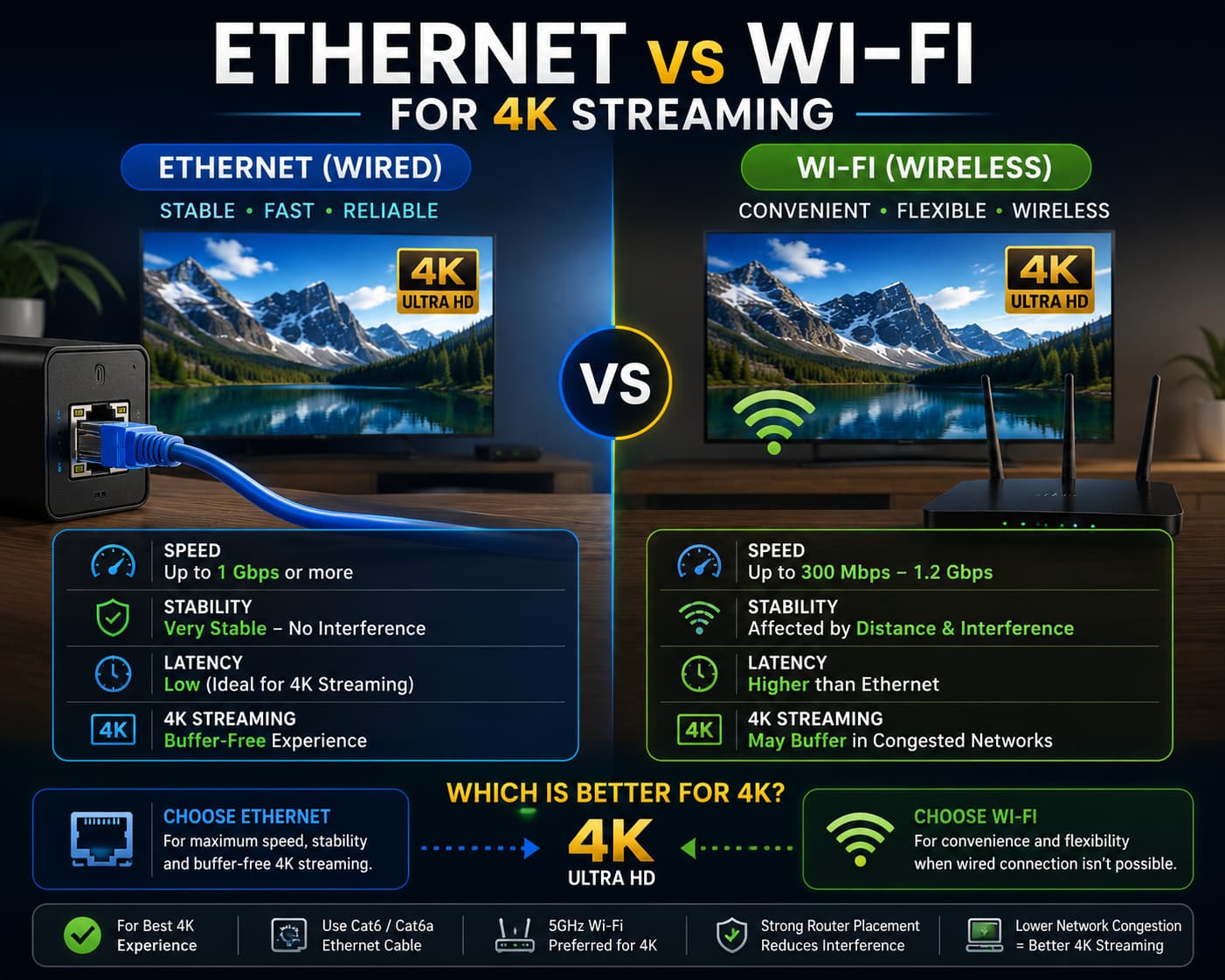
Strong Wi-Fi can handle 4K IPTV, but walls, distance and nearby networks can weaken it. Ethernet removes the wireless hop between router and player. Try the same UHD channel over both connections. If wired playback becomes smooth, the weak relationship sits closer to router → Wi-Fi → device. You should also test Wi-Fi from the actual viewing location. A speed test on your phone beside the router can create a false sense of security. Your Firestick or Smart TV may receive a much weaker signal across the room. Network stability matters more than a single peak result.
Why IPTV 4K Keeps Buffering
Buffering begins when your player consumes video faster than new data arrives. UHD can expose short speed drops more quickly because the stream often carries more data and requires more decoding work. Server congestion, weak Wi-Fi and background downloads can create similar symptoms. Limited device processing can add another bottleneck. Compare the same channel in 4K and Full HD before replacing hardware or changing several player settings. If 1080p stays stable while 2160p freezes, bandwidth, Wi-Fi and decoding deserve attention first. When freezing continues across different resolutions, a broader IPTV buffering and freezing diagnosis helps you trace the route from provider server to router, device and player rather than treating every interruption as a 4K problem.
4K IPTV on Firestick and Smart TV
Supported Fire TV 4K devices can decode HEVC UHD video at up to 60 fps, but the player still shares memory, storage and network resources with Fire OS. Your Firestick may support 4K technically while background processes or weak Wi-Fi reduce real playback quality. Device capability and device condition are separate factors. Samsung, LG and other Smart TVs combine the app, decoder, network adapter and display inside one chassis. An older TV can have a sharp 4K panel while its operating system struggles with newer apps.
Running IBO Player IPTV on compatible Samsung and LG televisions keeps playback on the television itself, while an external Firestick or Android box moves app processing and decoding onto separate hardware. If the same IPTV account performs better through an external device, your television software or decoder may be the bottleneck. The provider and network remain unchanged during that comparison, which makes the device difference easier to identify.
How to Improve IPTV 4K Picture Quality
Start with the source before touching sharpness, buffer or decoder settings. Compare several UHD channels and watch fine detail during movement. A weak source cannot be repaired by increasing sharpness on the TV. Artificial sharpening can make edges harsher without restoring missing information. Then test Ethernet, pause heavy downloads, update the IPTV player and change one playback option at a time. Advanced applications can expose buffer and decoder controls, so understanding how TiviMate IPTV handles playlists and playback settings gives you a clearer idea of what the player can change and what still belongs to the provider, network or hardware. Controlled testing shows which layer caused the improvement. Changing five settings together hides the real cause. A good IPTV 4K setup comes from removing bottlenecks one by one.
How Much Data Can 4K Streaming Use?
Ultra HD video can use far more data than HD. Netflix says its own 4K playback can consume up to 7 GB per hour, depending on playback settings and delivery conditions. The figure gives you a useful real-world sense of how much data UHD can move even with modern compression. Data use becomes important when your ISP applies a monthly allowance or you stream through mobile broadband. Four hours of UHD video at the upper Netflix estimate could approach 28 GB. Your connection may therefore be fast enough for IPTV 4K while the data allowance becomes the practical limit.
How to Judge a Good IPTV 4K Source
Do not judge a service only by the number of channels carrying a UHD label. Look for stable motion, consistent detail and reliable playback during busy periods. A genuine high-quality feed should remain convincing when the scene becomes difficult, not only when the camera is static. The playlist and the video source also perform different jobs. An M3U playlist used by an IPTV player mainly provides stream locations and related entries; the playlist format itself does not turn a poor source into native 4K. Picture quality still comes from the feed, encoding, server delivery and decoding path.
TiviMate, Smarters or IBO Player can only organise and decode what the provider sends. Your player cannot manufacture detail missing from the original feed. Provider quality therefore becomes part of the 4K decision, and knowing what to evaluate in an IPTV subscription in France helps you separate channel-count marketing from stream stability, device support and actual UHD performance. Keeping provider → server → network → device → player → display clear helps you troubleshoot the right layer. The same relationship prevents you from changing app settings when the original feed is poor.
Frequently Asked Questions
Is 25 Mbps Enough for IPTV 4K?
A stable 25 Mbps connection can handle many compressed 4K streams, although the exact requirement depends on bitrate, codec and other devices using your network. Netflix recommends 15 Mbps or higher for its own Ultra HD service, so 25 Mbps gives useful extra headroom. Test speed at the television before deciding that your broadband package is too slow.
Why Does 4K IPTV Look Blurry on a 4K TV?
Your TV may receive an upscaled source, low bitrate or heavy compression. A 3840 × 2160 output does not guarantee native UHD detail in the original feed. Compare another trusted 4K source on the same screen. The comparison separates display performance from source quality.
Is HEVC Required for IPTV 4K?
HEVC is common for UHD delivery, but the exact codec depends on the source. Your streaming device must support the format sent by the provider. Fire TV 4K hardware and Nvidia Shield both support HEVC for 4K playback. Codec support connects provider encoding directly with device compatibility.
Is Ethernet Better Than Wi-Fi for IPTV 4K?
Ethernet usually gives you a more predictable local connection because walls and wireless interference no longer affect the link. Good Wi-Fi can still stream UHD smoothly when signal strength remains stable. A wired comparison is valuable when you are locating IPTV 4K buffering. If Ethernet solves the problem, your subscription may already be working properly.
Why Is IPTV 4K Buffering but HD Works?
UHD may need more bandwidth and decoding power than Full HD. Weak Wi-Fi, temporary speed drops or older hardware may work at 1080p and struggle at 2160p. Comparing both versions gives you a quick diagnostic test. The result tells you where to investigate before replacing your provider or device.
Final Verdict
You get better IPTV 4K quality when every layer supports the same goal. The source needs real detail, the server must deliver it consistently, the network needs stable capacity, the device must decode the codec, and the TV has to display the output correctly. One weak layer can reduce the benefit created by all the others. Focus on evidence rather than labels. Compare 4K with Full HD, test the connection where you watch, use Ethernet when Wi-Fi varies, and judge channels during real motion instead of static menus. A balanced IPTV 4K setup gives you better UHD quality than any single “best setting.”