IPTV Without Buffering in 2026: How to Fix Freezing, Lag and Black Screen
IPTV without buffering starts with a stable internet connection, a capable streaming device, and a reliable IPTV service. When your IPTV keeps buffering during a football match or freezes halfway through a movie, you usually want one straight answer. You need to know whether your internet is slow, your device is struggling, or the…
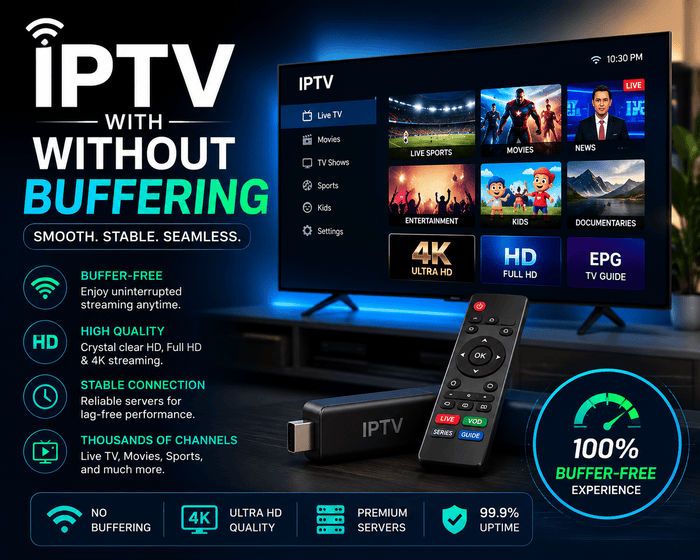
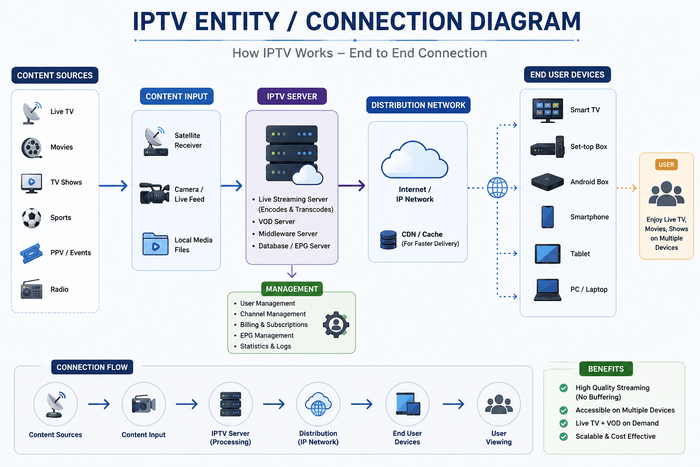
IPTV without buffering starts with a stable internet connection, a capable streaming device, and a reliable IPTV service. When your IPTV keeps buffering during a football match or freezes halfway through a movie, you usually want one straight answer. You need to know whether your internet is slow, your device is struggling, or the IPTV stream itself is unstable. Randomly changing settings often wastes time because several components work together before a channel reaches your screen. An IPTV stream travels from a provider server through the internet, reaches your router, passes through Wi-Fi or Ethernet, enters your streaming device, and finally gets processed by the IPTV player and video decoder. A weakness at any point can cause freezing, lag, pixelation, audio delay, or a black screen. Once you understand that relationship, finding the real cause becomes much easier.
Why Does IPTV Keep Buffering? Try IPTV Without Buffering
IPTV buffering begins when your player consumes video data faster than fresh data arrives.Your app is generally maintaining a small buffer of video ready in advance, which helps smooth out small fluctuations in the network. When that buffer runs out, playback stops until the data has arrived again.A slow connection is only one possible cause. Weak Wi-Fi, an overloaded IPTV server, limited device memory, poor decoding, high-resolution streams, or background downloads can create the same symptoms.Your job is to find out which part of the streaming chain is stressed.
How much internet speed for IPTV?
Internet speed is important, but one speed test result does not tell the whole story.Netflix recommends around 5 Mbps for Full HD and 15 Mbps for Ultra HD streaming, which gives you a useful benchmark for video delivery. Live IPTV may need more headroom because several devices can share the same connection at home. Run a speed test from the room where you actually watch IPTV. A router may receive 300 Mbps while your television gets 25 Mbps through two walls. A stable 40 Mbps connection can often perform better than a connection jumping between 100 Mbps and 10 Mbps every few minutes.
| Problem you notice | First area to check | Likely relationship |
| Every streaming app is slow | Internet and router | Broadband → home network |
| IPTV freezes but YouTube works | IPTV source or player | Provider → stream → app |
| Only one channel freezes | Individual channel | Source → server |
| 4K buffers but HD works | Network and device | Bitrate → decoder |
| Buffering happens at night | Peak-hour traffic | Route → provider server |
| App menus are also slow | Device performance | Storage → memory → player |
| Audio works but video is black | Decoder or codec | Stream format → hardware |
Test Ethernet Before Blaming the IPTV Provider
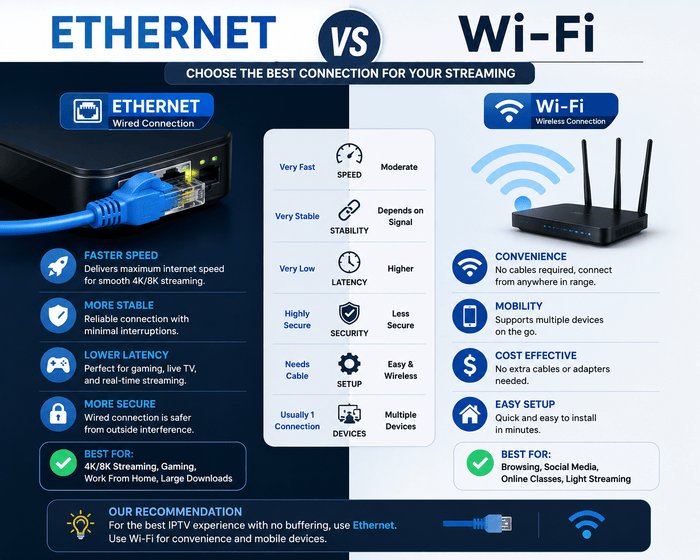
Wi-Fi is convenient, but it is also one of the most common weak points in home streaming.Walls, distance, nearby routers, televisions, Bluetooth devices, and other wireless equipment can affect performance. A wired Ethernet connection removes many of those variables. Connect your IPTV setup for Smart TVs and streaming devices helps separate installation issues from connection problems before you start changing network settings.
Improve Wi-Fi for IPTV on Smart TV and Firestick
You may not be able to run an Ethernet cable across your home, so Wi-Fi quality becomes important. Keep the router in an open position rather than hiding it inside a cabinet. Reduce large obstacles between the router and your television whenever possible.Use both 5 GHz and 2.4 GHz Wi-Fi bands if your router supports it 5 GHz network has higher performance but shorter distances 2.4 GHz often covers a larger areaChoose the connection that remains stable during a real IPTV stream rather than the one showing the highest number beside the router.
Stop Background Downloads and Heavy Network Usage
Your IPTV player does not receive exclusive access to your internet connection.A game console downloading an update, a laptop uploading files, a different television playing 4K video, or a bunch of phones using the network can all use up available bandwidth.Live IPTV can become unstable when those activities happen together. Pause large downloads and cloud backups for several minutes. Play the same channel again and watch whether the buffering changes.If playback improves quickly, the congestion probably occurred on your home network rather than an IPTV server issue.
Restart your Router, Streaming Device and IPTV Player
A restart may sound too basic, but it can solve transient issues. Routers remember active network sessions, streaming devices remember background processes in memory, and IPTV apps remember temporary playback data. Small errors can build up over time. Close the IPTV application completely, restart your Firestick, Smart TV, Android box, or Google TV device, and reboot the router. Test the same channel before changing another setting.By changing one variable at a time, you can see what actually fixed the problem.
Clear IPTV App Cache
IPTV players store a cache of channel logos, EPG information, playlists, VOD data and temporary files. If the cache becomes very large it can slow down the app, especially on devices with limited storage. You may notice slow menus, delayed channel switching, or an app crashing more often than usual. Player behaviour also varies between applications, which is why comparing the features of an IPTV Smart Player can help when the network is healthy but the application remains slow. The player manages navigation and decoding, while your provider remains responsible for the source stream.Clear the cache from your device settings when the option is available. Avoid clearing full app data unless you have saved your login details, Xtream Codes, or M3U URL. Clearing application data may remove your saved configuration. An M3U address can contain the server location and account credentials needed to load your channels. Understanding how an M3U playlist works with an IPTV player also makes it easier to distinguish a playlist-loading problem from normal video buffering.
Update Your IPTV App and Streaming Device
Old software can create problems with newer stream formats, operating-system updates, and video codecs.Update your IPTV Player thru an official app store or trusted download source from the developer. Don’t download unknown APK files claiming to have special anti-buffering versions.Your streaming device also needs current firmware. A Firestick, Android TV box, Google TV device, or Smart TV can receive bug fixes and playback improvements through system updates. Keeping both the player and operating system current removes avoidable compatibility problems.
Switch From 4K to Full HD for a Quick Test
A 4K stream requires more data and usually more processing power than a Full HD stream. If your 4K channel keeps freezing but the HD version plays smoothly, you have already narrowed the problem.The network, decoder or device hardware might be struggling with the heavier stream. Run the comparison for a few minutes. Don’t assume that a 4K television can process every 4K IPTV stream perfectly. Screen resolution and decoding capability are separate parts of the device.
Check Buffer Size and Hardware Decoding
Advanced IPTV players such as TiviMate may offer buffer controls and hardware decoding options. A larger buffer can help absorb brief fluctuations because your player stores more content before playback catches up.A buffer cannot repair a server that stops delivering video completely. Hardware decoding can reduce the workload on the main processor when your device supports the stream format properly. Test one setting at a time and replay the same channel. Settings that work well on an Nvidia Shield may not behave the same way on an entry-level Android box.
Test HLS or MPEG-TS Only When Supported
Some IPTV providers and players allow you to choose between HLS and MPEG-TS output.Since each format delivers video in a different way, one might work better with a certain server, network, or device.No format can guarantee perfect playback in every setup. Test another stream format only after you check Wi-Fi, Ethernet, device health, and server behaviour. Keep the option that gives you the most stable playback. Avoid changing account URLs or technical parameters unless you understand what they control.
Do Not Treat DNS as a Magic Buffering Fix
Changing DNS may help when your current resolver has trouble finding or connecting to a server.DNS does not increase your broadband speed or create more server capacity. A slow IPTV source will remain slow even after you replace your DNS provider. Use a DNS change as a diagnostic step rather than a guaranteed solution. Test the same channel before and after the change. Keep the new setting only when you see a clear improvement.
Test a VPN Carefully
A VPN changes the route between your device and the server. A different route may help when your normal connection path performs badly, but a VPN can also add latency. A distant or overloaded VPN server can make IPTV freezing worse.Compare the same authorized stream on and off your VPN. Use a nearby server if you want a VPN for privacy. Don’t assume all IPTV buffering issues need one.
Why IPTV Freezes on Live Sports
Live sports can be more demanding on IPTV infrastructure as a lot of viewers may open the same popular channels at the same time. Football matches, boxing events and major tournaments can create heavy server demand.Fast movement also makes it easier to identify quality drops. Compare multiple IPTV channels when a match freezes. Check YouTube or another legal streaming service on the same device too. If other services run fine while several IPTV sports channels have problems, the provider route or source server needs more attention.
IPTV Buffering on Firestick
A Firestick has limited storage and memory compared with larger streaming boxes. Background apps, low storage, weak Wi-Fi, or device heat can affect IPTV performance. Slow menus often suggest that the problem involves the device rather than the stream alone. Restart your Firestick, clear the IPTV app cache, close unused applications, and check available storage. When you use Smarters Player Lite for IPTV on a Firestick, the player still shares the device’s memory, storage, and network connection with Fire OS, so app performance and hardware performance cannot be treated separately. Test the network from the Firestick location rather than from your phone beside the router. An Ethernet adapter can also help you separate a Wi-Fi problem from a provider problem.
IPTV Buffering on Samsung and LG Smart TVs
A Smart TV combines the display, processor, operating system, network adapter, and IPTV application inside one device. Older televisions may still produce an excellent picture while their processors become slow with newer apps or higher-bitrate streams. App performance can decline even when the panel itself remains perfectly fine. Native Smart TV players can behave differently from Android-based applications. For example, IBO Player IPTV on compatible Samsung and LG televisions lets the television handle the player directly, while an external Firestick or Android box moves processing onto separate hardware. Update the television software and IPTV application, then restart the TV fully. Test Ethernet if your television has a network port. If the same account runs smoothly on a newer external device, your television hardware or software may be the bottleneck.
Why IPTV Shows a Black Screen
A black screen with working audio often points toward a video-decoding problem. Your player may receive the stream correctly while the device fails to process the video format. Testing another channel helps you see whether the problem affects one source or the whole application.Restart the player and try another channel from another category. If these channels fail, verify that you can log in to your account or that your device is compatible with the provider, and check the provider’s status. One broken channel usually points closer to an individual source.
Why Faster Fibre Does Not Always Stop IPTV Buffering
Imagine your home receives a 500 Mbps fibre connection while an IPTV source sends an unstable stream. Upgrading to 1 Gbps will not repair the source server because the bottleneck sits outside your home. More broadband capacity cannot create missing data. The opposite can happen as well.A provider may deliver a stable stream while your television receives weak Wi-Fi through several walls. Your provider cannot improve wireless coverage inside your house, so you need to fix the local network instead.
When Should You Contact Your IPTV Provider?
Contact support after you gather useful information.Tell them what channels don’t work. When do issues start? What device are you using? What IPTV app? Are you connected via Ethernet or wifi?Mention whether other streaming services work normally. Server stability, account limits, supported devices, and stream quality are provider-level factors, so understanding how to evaluate an IPTV subscription in France helps you recognise when repeated buffering has moved beyond a local troubleshooting problem. Check your account connection limit too. A subscription may allow one stream even when your broadband connection can easily support several televisions. Internet bandwidth and IPTV account limits are separate things.
Frequently Asked Questions
Is Ethernet superior to Wi-Fi for IPTV?
Ethernet usually gives you a more predictable connection. A cable removes Wi-Fi interference, signal loss, and distance from the path between your router and device.Strong Wi-Fi can still work very well when the router is close and the network remains stable.
Why does IPTV only buffer in the evening?
If you notice buffering during the evening hours, it could be because there are more internet users on at this time or it could be the IPTV servers themselves. It could be that you have more devices in your house at these times too. Try watching the same channel earlier in the day and try a different streaming service in the evening.
Why does IPTV freeze during football matches?
Popular matches can attract lots of viewers to the same live stream. This increased demand on the server can expose weak provider infrastructure or routing issues. Try multiple channels and compare with another streaming service before blaming your home connection.
Does clearing cache fix IPTV freezing?
Cache clearing can be useful if the app has accumulated temporary files or is running slow.It will not repair weak Wi-Fi or a failing IPTV source. Use it when your player menus lag, crash, or take longer than normal to load.
Does increasing the buffer size help IPTV?
A larger buffer can smooth short connection fluctuations. This will make your player buffer more video before playing it , giving the stream a chance to recover from short drops . Server outages or bad network problems will still cause freezing .
Is VPN Required for IPTV Buffering?
A VPN may help when a different network route performs better, but it can also slow your connection.Test the same authorised stream with and without a VPN. Keep the setup that gives you the more stable result.
Why does IPTV 4K buffer while HD works?
4K often requires more consistent bandwidth and better decoding power. You may run into issues that don’t happen with Full HD due to bad Wi-Fi, outdated hardware or a heavy video codec. Comparing 4K and HD is one of the easiest diagnostic tests.
Can an IPTV player cause buffering?
Yes, but remember that the player is only one part of the system. Performance can be affected by outdated software, poor decoder compatibility, too much cache or inappropriate playback settings. The source stream is still under the control of the provider but the delivery through your home network is controlled by you.
Why does just 1 IPTV channel keep freezing?
If just 1 channel has problems, it’s probably a problem with that specific source, not your entire setup.Test a few channels in different categories. If the rest of your IPTV service is working fine then report the problematic stream to your provider.
Final Verdict
How to Get IPTV Without Buffering Good IPTV starts with diagnosis, not a secret setting.Test another channel, compare another streaming app, check your speed near the television, try Ethernet, restart your equipment, and compare 4K with HD. Move into buffer settings, stream formats, DNS, or VPN tests only after the basic checks. Your provider supplies the stream, your internet route carries it, your router delivers it, your device processes it, and your IPTV player controls playback. Once you know which part handles each task, IPTV buffering becomes much easier to trace. You also avoid paying for faster internet or new hardware when the real bottleneck sits somewhere else.